Find, install, and configure Agents
Lumoswitch can manage some Agent installations and model settings. The available action depends on the Agent and how it is installed. An Agent appearing in the catalog does not mean Lumoswitch can install or write its configuration.
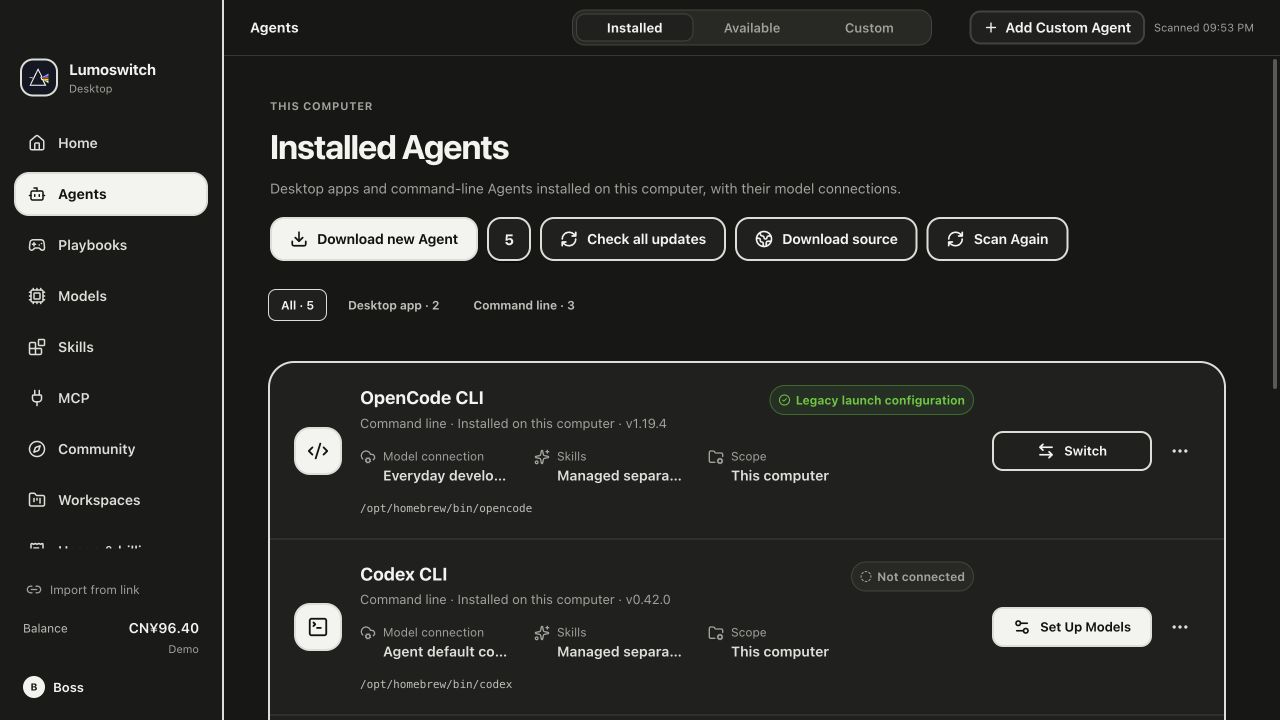
This screenshot uses demo data. Versions, connections and balance are examples; follow the interface in your installed client.
Open Agents
- Open Agents in Lumoswitch.
- Review the Installed list for Agents detected on this computer.
- Use Available to browse the catalog and check each entry's action. Some Agents can be installed in Lumoswitch; others open an official download page, show a package-manager command, or link to the official guide. Review any installation preview before confirming.
- For an Agent you installed yourself from its official source, return to Installed and refresh or scan the list if it is not shown.
- Check that Agent's available actions and configuration status before proceeding.
Detection and installation are separate. Some applications can be discovered but cannot be installed or configured by Lumoswitch. Some are only supported through their official settings interface. A detected application may also be unavailable for a specific model configuration. Follow the guidance displayed for that Agent; do not assume every catalog entry supports managed installation or native configuration.
Connect a model
- Open Agents → Installed and choose the Agent you want to configure.
- Choose its model setup action and select an available model connection. If you need one, create it first under Models.
- Review the configuration preview, the affected settings and any restart instructions.
- Before applying, manually back up important settings if you want a recoverable copy. Lumoswitch does not automatically back up every native configuration file.
- Confirm only when the preview is correct. If the app offers Apply and Reopen, use it to restart the selected Agent with the saved configuration; finish active work first.
- Open the Agent normally and make a small test request.
Native model configuration generally preserves unrelated settings, but file formats can be rewritten and support varies by Agent. A manual backup is available from Configuration backups for supported Agents. Review the listed file paths before restoring or resetting anything.
Backups and reset risk
Configuration backups can create a manual full-file backup for supported Agent configuration files. A restore replaces whole listed files; it can remove changes made since the backup. Reset deletes all listed configuration files, including other preferences stored in them, such as MCP or permission settings. Restart the Agent to have it generate its initial configuration again. Neither restore nor reset automatically creates another backup. Other files outside the listed paths are not covered.
Create and verify a manual backup before a restore or reset if you may need the current settings. Read the affected paths and confirmation text carefully; do not proceed if you are unsure what will be replaced.
Confirm the setup
The setup is ready when the selected Agent opens, shows or uses the chosen model connection, and returns a small test response. If the Agent says its configuration is unsupported or still needs review, follow the displayed official setup instructions instead of repeatedly applying the same change.
If you cannot find or configure an Agent
- Refresh the Installed list and make sure the application or CLI is installed for your user account.
- If it appears as detected but has no managed setup action, use the Agent's official settings or documentation. Detection alone does not grant write support.
- If installation is unavailable, install the application from its official source and scan again.
- If a preview reports that the configuration changed, reopen the setup and review the updated preview. Do not reuse an old confirmation.
- If you applied a change but the Agent did not load it, follow its restart guidance. For local gateway connections, keep Lumoswitch running while the Agent sends requests.
See Quick start and Models. Skills are managed separately from Agent model configuration.
Choose models on this device or online
Add an online or on-device model connection, understand where requests run and who bills them, then confirm the runtime is ready before connecting an Agent or Workspace.
Work safely in a Workspace
Open a project, choose a model and Skill, describe a small task, review approvals, and stop or resume work while checking its saved status.